
Connect Inblog to Claude and ChatGPT
Find Inblog in Claude Connectors or ChatGPT Plugins, sign in, and run your blog through conversation.
Connect Inblog to Claude or ChatGPT and run your blog through conversation. Draft and publish posts, check traffic and search performance, and even change your blog design. Inblog is available from the connector and plugin directories in both products.
Before You Start
You need:
- An Inblog account on the Team plan or higher.
- A Claude or ChatGPT account
- The MCP server URL for custom setup:
https://inblog.ai/api/mcp
Use the directory entry first. Both directory connections and custom setup use the same Inblog MCP server and ask you to sign in to Inblog through OAuth.
Connect to Claude
- In Claude, open
Settingsand selectConnectors. - Open the
Discovertab and search forinblog. - Select Inblog and choose
Connect. - Sign in to Inblog and approve access on the consent screen.
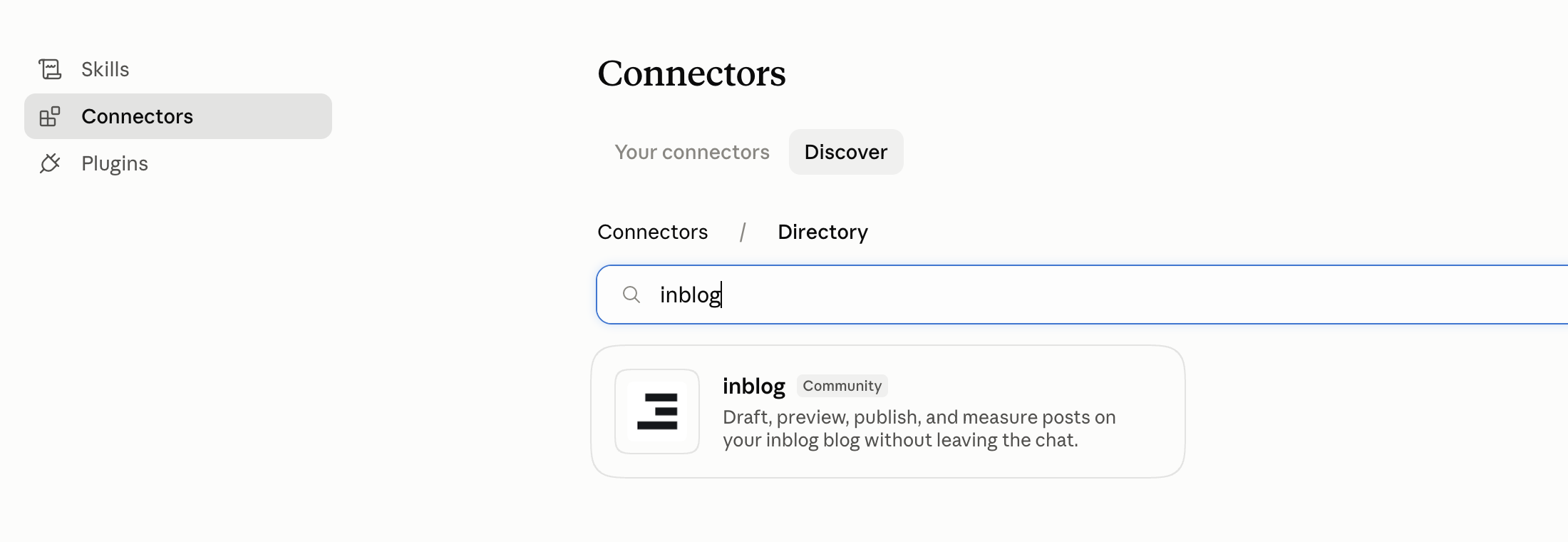
Search result for Inblog in the Claude Connectors directory
Once connected, the Inblog tools are available directly in your conversations.
Claude currently labels Inblog as a Community connector. It is available through the Claude Connectors directory, but it is not verified by Anthropic.
Connect to ChatGPT
- In ChatGPT, open
Settingsand selectPlugins. - Search for
inblogin the plugin catalog. - Select Inblog and connect it.
- Sign in to Inblog and approve access on the consent screen.
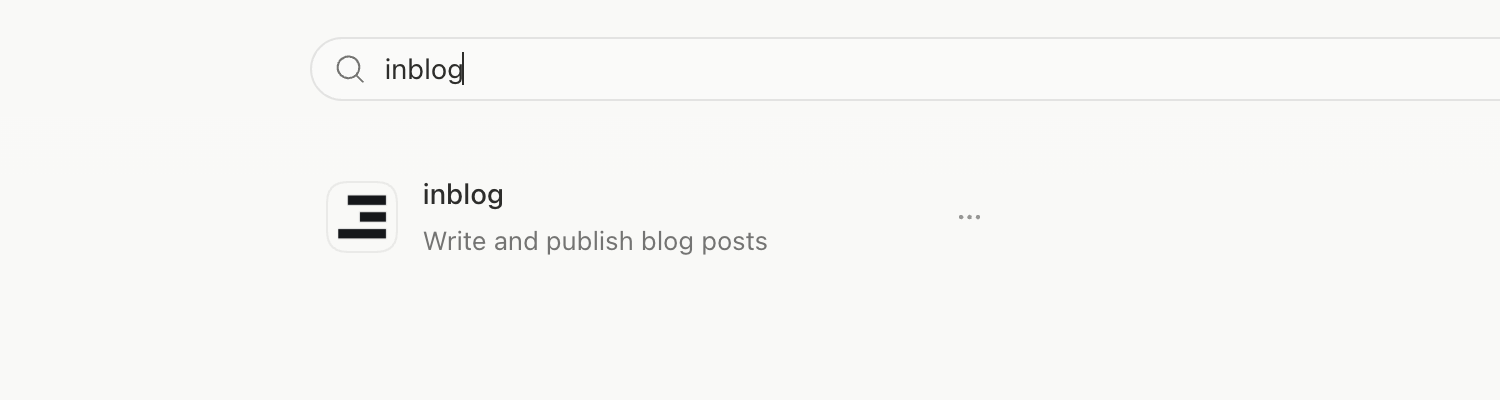
Search result for Inblog in ChatGPT Plugins
Connect with the MCP Server URL
If the directory is not available in your environment, add https://inblog.ai/api/mcp as a custom MCP server. In Claude, choose Add custom in Connectors. In ChatGPT, accounts and workspaces with custom MCP access can enable Developer mode from Settings → Apps → Advanced Settings, then add the server from Settings → Apps → Create. Sign in to Inblog and approve access in the same way.
Permissions and Scope
- Your blog role applies as-is. Anything you cannot do in the dashboard, you cannot do through the connector either. For example, the author role can create and edit posts, but cannot create tags, change blog settings, or edit design code.
- Once connected, every blog that account can access is in scope. If you run several blogs, name the blog in your request — for example, "add it as a draft on the Product blog."
What the Connector Can Do
The connector exposes 38 tools. You do not need to remember tool names: describe what you want and the agent picks the right tool.
| Area | What you can do |
|---|---|
| Posts | List and read posts, create drafts, edit content, publish, unpublish, schedule, delete, assign tags and authors, upload images |
| Tags and authors | Create, update, and delete tags; list and remove authors |
| Performance | Traffic reports, traffic sources, per-post performance, search keywords and pages (when Search Console is connected) |
| Site | Blog settings, banner and UI configuration, custom domain status, redirect management |
| Forms | List forms and read responses |
| Design | Read the Handlebars design guide; read, validate, and replace design code |
Examples
1. Write a post, review it, then publish
"Write an SEO post about onboarding checklists for remote teams and add it as a draft."
The agent writes the post, saves it as a draft, and returns a preview URL with it. Open the link to check the title, structure, and images before anything goes public. If something needs work, just keep going in the same conversation.
"Shorten the second section and tag it with 'onboarding'."
When it looks right, ask for publication.
"Looks good, publish it."
If you want it to go live at a specific time instead of immediately, ask for scheduled publishing — for example, "schedule it for 9 AM next Monday."
2. Check performance
"Show me traffic and traffic sources for the last two weeks."
The agent pulls the traffic report and traffic sources for the period and summarizes them, including which posts drew the most visits and whether traffic came from search, direct, or referrals.
"List the top 10 keywords by search impressions."
If you have connected Search Console, you also get search keyword and landing page data. From there you can keep going: "suggest post ideas for the keywords we haven't covered yet."
3. Change the blog design
"Update the banner at the top of my blog to promote this month's event."
The agent first reads the Inblog Handlebars design guide, checks the current design code, and writes the new code. It then validates the code before applying it to your blog.
Validation happens at the compile level, so open the live page and confirm the result with your own eyes after the change is applied.
4. Clean up redirects
"Point the old
/blog/old-postURL to the new post with a 308 instead of a 307."
The agent reviews the existing redirect rules and creates a new one or updates the existing rule. Form leads work the same way — ask something like "summarize the form responses we received this month" and the agent pulls the forms and their responses.
Things to Keep in Mind
-
Some actions change public pages immediately. Publishing and design changes are visible to visitors the moment they run. When you delegate to an agent, it is safer to ask it to confirm first — for example, "show me the draft before you publish."
-
Design code validation is compile-level only. Code like the snippet below — loading a partial, or calling a helper without arguments — can pass validation and still fail at render time. Always check the live page after saving.
{{> some-partial }} {{someHelper}} -
Image upload size. Uploading a file directly goes through a base64 payload, so the effective limit is about 3 MB. For larger images, pass an image URL instead; that path allows up to 10 MB.
-
You can disconnect at any time. Remove the Inblog connector in the Claude or ChatGPT connector settings and access stops immediately.
Related Links
Last updated 2026-09-08