
Blog Settings Overview
Once you've completed the initial setup on inblog, you'll have your own branded company blog—fully customized without writing any code.
Once you've completed the initial setup on inblog, you'll have your own branded company blog—fully customized without writing any code.
Examples:
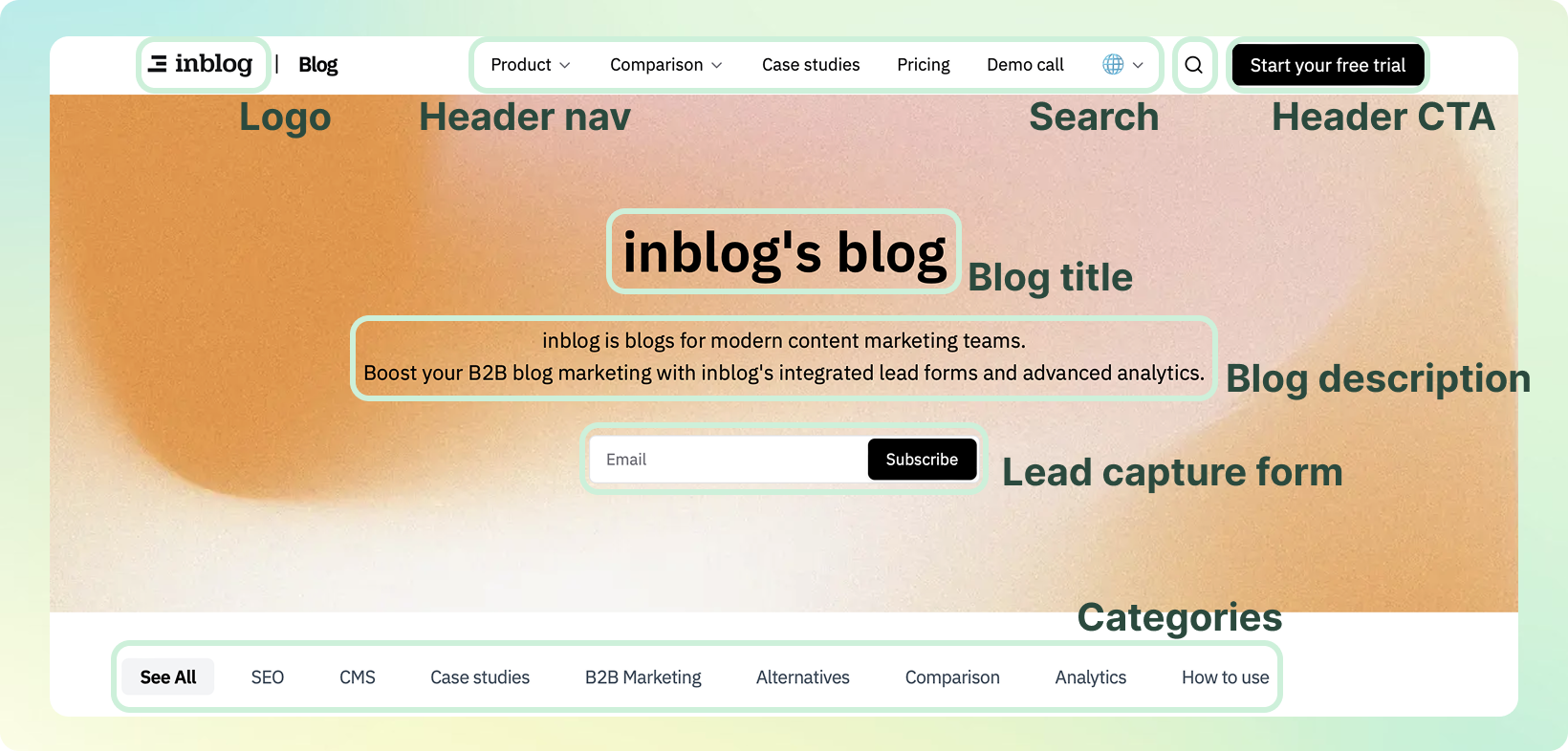
From your blog dashboard, click Settings in the left sidebar. Here, you can manage all core settings in a no-code interface.
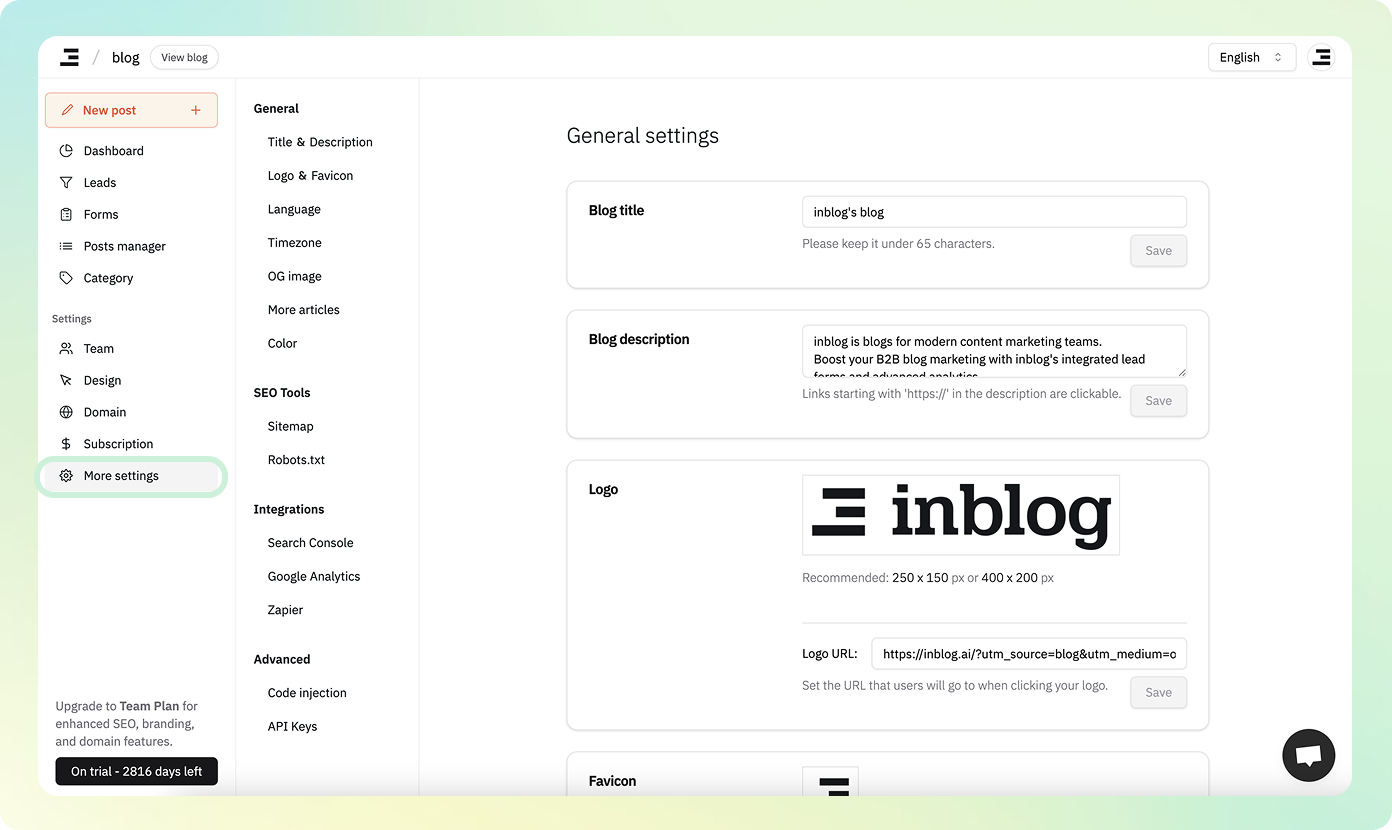
General Settings
-
Blog Title & Description
- Customize the blog's main title and description as it appears on the homepage.
-
Logo & Favicon
-
Upload your blog's logo (recommended size: 250×150 or 400×200)
-
Set a destination URL for logo clicks (usually your main website)
-
Upload a square image for the favicon (PNG and ICO formats are supported)
-
-
Language
- Select the primary language of your blog. This will be reflected in the hreflang meta tag for SEO optimization.
-
Timezone
- Set the timezone for your blog dashboard.
-
OG Image (Open Graph)
-
Set the default image that appears when your blog is shared on social media or messaging apps.
-
Recommended size: 1200×630
-
-
Related Posts ("More Articles")
-
You can customize how related content appears at the bottom of each blog post.
-
Display name (e.g., "Related Articles")
-
Rule for displaying posts:
-
Scope:
-
Entire Blog
-
Same Category
-
-
Logic:
-
Closest publish date
-
Latest posts
-
Random posts
-
-
-
You can also define related posts manually per individual post.
-
-
Preset Colors
- Set up brand colors for use across the blog—particularly for CTA buttons and accent elements.
SEO Tools
-
Sitemap
-
robots.txt
- Configure to allow or restrict search engine crawlers as needed.
Integrations
Google Search Console
See: Tutorial Step 2 – Connecting Google Search Console
Google Analytics
Add your Google Analytics Measurement ID to start tracking performance.
Zapier
Connect inblog to your favorite tools such as CRM or email marketing platforms using Zapier.
Advanced Settings
-
Code Injection
- Inject scripts into your blog's
<head>or<body>to integrate third-party tools (e.g., Mixpanel, Amplitude, etc.).
- Inject scripts into your blog's
Account Management
How do I log out?
Click your profile icon or account menu in the top-right corner of the dashboard and select Log out. If you stay logged in due to browser caching, clear your browser cookies and cache, then log in with the desired account.
How do I delete my account?
There is no self-serve account deletion option in the dashboard at this time. To request account deletion, email contact@email.inblog.ai or contact us via chat.
If what you actually want is a different plan, you don't need to delete anything. Moving from the Free Plan up to the Team Plan, and cancelling a paid subscription back down to the Free Plan, are both handled on the
Subscriptionscreen with the same account and blog. See the FAQ for the exact path.
How do I delete a blog, and what if deletion keeps failing?
Blog deletion lives on the Settings screen in the left menu, in Delete this blog below the separator at the very bottom. You have to type the blog address (subdomain) exactly in the confirmation dialog before the delete button becomes active. Deleting is permanent — the blog and its posts are removed for good, and other team members lose access too.
Check these two things first:
-
If you don't see the section at all, you are not on the Owner account. It is shown to the blog owner only. To move ownership, add the new account as a team member and change its role to Owner.
-
An active subscription blocks deletion. In that case the dialog shows a
Go to subscription settingslink instead of the address field, and the delete button stays disabled. Cancel the subscription underSubscription, then delete the blog.
If you keep seeing
Failed to delete blog. Please try again., or deletion is still blocked as subscription-related after you cancelled, the screen doesn't show the underlying reason. Send us the blog address via chat and we'll check it and delete it for you. Let us know if you want your account closed as well, and we'll handle both together.
How do I switch to a different account?
Add the new account as a team member, then transfer the Owner role to that account.
Last updated 2026-09-08